
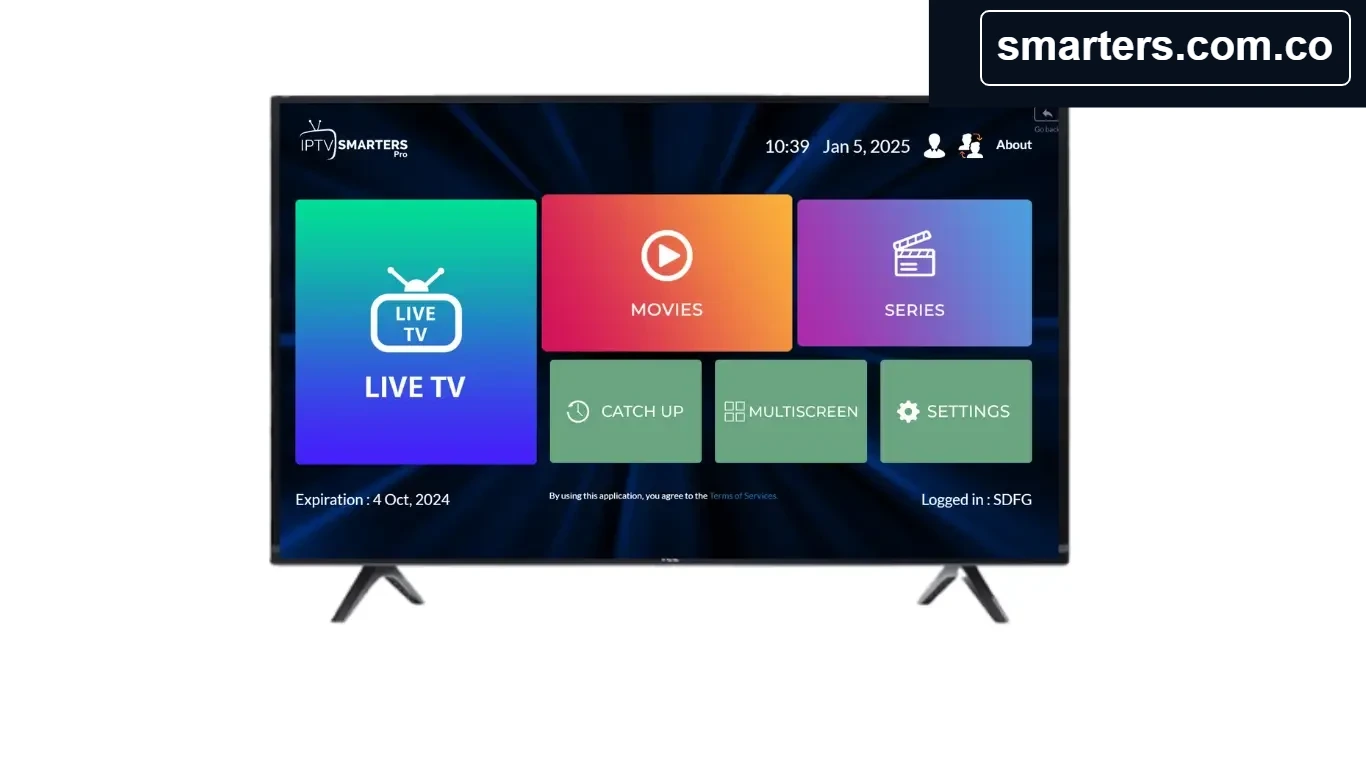
Welcome to Smarters.com.co, your practical guide to setting up the Smarters player with playlists you are authorized to access. This expanded walkthrough explains what to prepare, how M3U playlists work, how to import a link carefully, and what to check if channels or program information do not appear. The player organizes media; it does not supply channels, subscriptions, or copyrighted streams.
What an M3U playlist does
An M3U playlist is a text-based list of media entries. An IPTV provider may supply it as a URL or as a local file. Depending on that provider, the playlist can include channel names, stream addresses, groups, logos, and guide identifiers. The player reads this list and presents available entries in its interface; it does not verify that a source is authorized or guarantee that a stream will remain available.
Before adding a playlist
- Obtain the playlist directly from a provider you trust and are legally entitled to use.
- Check the subscription status, expiration date, device limits, and any connection rules with that provider.
- Keep the complete URL private. Some M3U links embed a username, password, or token, so anyone who receives the link may be able to access the account.
- Use the official app store or the publisher’s verified download channel for your device. Avoid unknown APK mirrors and unsolicited download links.
- Connect the device to a stable home network and make sure its date and time are correct.
How to add an M3U URL in Smarters
- Open Smarters and select the option to add a user, playlist, or new profile. Names differ slightly between versions and devices.
- Choose the M3U playlist or playlist-by-URL method, rather than Xtream Codes login.
- Enter a recognizable profile name that does not reveal private account information.
- Paste the complete playlist URL exactly as supplied. Check that the full address is present, including any path, query parameters, and capitalization.
- Save the profile and allow the app time to retrieve the playlist. A large list or a provider experiencing high traffic may take longer to load.
- Open the categories the playlist actually supplies, such as Live TV, movies, or series. Not every playlist includes every category.
Using a playlist file instead of a URL
If your provider gives you an M3U file, save it to a location that the device and app can access. In Smarters choose the local-file or file-upload option, browse to the saved file, and import it. Use a file supplied by your provider, avoid opening files from unknown sources, and remove unneeded copies from shared or public devices when finished.
Make the guide and categories easier to browse
Some playlists include guide metadata; others provide a separate EPG URL or ask you to refresh guide data after importing the playlist. If the app offers guide settings, follow your provider’s instructions for associating the guide with channels. Channel logos, categories, catch-up, and on-demand entries depend on what the authorized source supplies, so their absence may not be an app fault.
Common M3U setup problems
The playlist will not load
Check for spaces before or after the URL, missing characters, and a stable network connection. Confirm that the link is still active and has not been regenerated. If the service uses a device limit, ask the provider whether an old session needs to be removed.
The playlist loads but categories are empty
Wait for the initial refresh to complete, then refresh the list once. Confirm with the provider that the account includes the categories you expect. If the same playlist works on another supported device but not this one, note the app version and device model before contacting support.
Guide data or logos are missing
EPG and logo data may be absent from the source or require a separate guide address. Ask your provider for current setup instructions instead of using random public EPG links.
Playback buffers or fails
Test more than one authorized item, restart the router and device, reduce quality if the player offers that setting, and pause other heavy network activity. If only a particular channel fails, or the issue occurs on all devices, the service provider can check the stream and server.
Protect your playlist credentials
Do not publish your M3U URL in comments, screenshots, or support forums. Use a unique profile name, sign out or remove the profile on shared devices, and contact the provider promptly if you believe a playlist link was exposed. Never send a password or full playlist link to Smarters.com.co when asking general player questions.
Frequently asked questions
Does Smarters provide a playlist?
No. Smarters is a media player. You must use a playlist from a source you are authorized to access.
Can one M3U link work on every device?
That depends on the provider’s plan, playlist format, device compatibility, and any simultaneous-connection limits. Confirm the rules with the provider.
Should I use M3U or Xtream Codes?
Use the login method your provider supports. M3U is a playlist URL or file; Xtream Codes uses a server address and account credentials. The available features vary by player version and provider.
For more setup help, see the Smarters.com.co FAQ, our Xtream Codes guide, or the contact page. Only add media sources you are legally entitled to use.