
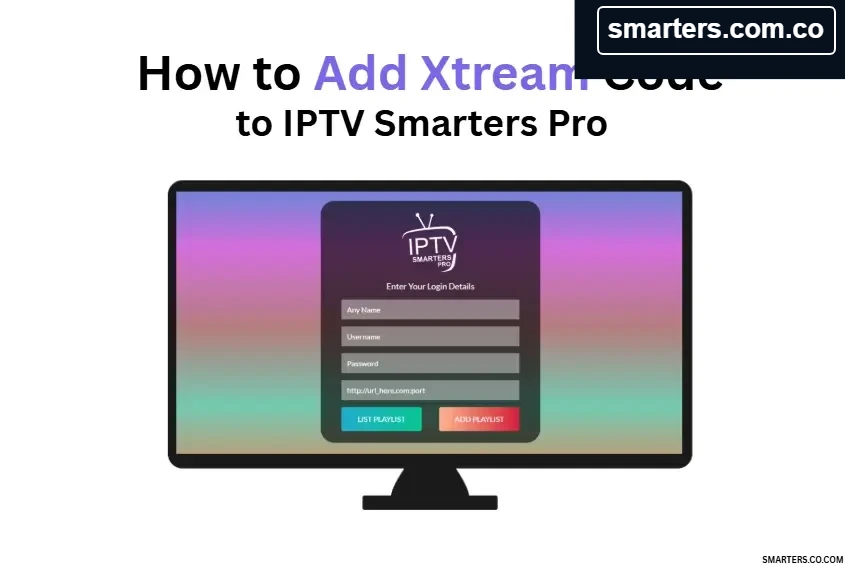
This guide from Smarters.com.co explains how to connect the Smarters media player using Xtream Codes API details from a provider you are authorized to use. It covers the information to request, a careful setup routine, privacy practices, and troubleshooting steps. Smarters is a player only: it does not provide IPTV subscriptions, channels, movies, or series.
What is an Xtream Codes connection?
In compatible player versions, this login method uses a server address, username, and password. The provider uses those credentials to identify your account and return the playlist and associated categories. Depending on the app and service, the account may also expose guide data or on-demand sections. The app cannot fix a disabled account, incorrect server address, or unavailable provider server.
Get your details from the right source
Request the exact login details from the legitimate service provider that created your account. Confirm whether the address must include a protocol such as HTTPS, a port number, or a particular path. Ask whether your account has device or concurrent-stream limits, and make sure the subscription is active. Do not copy credentials from a public forum, another user’s screenshot, or an unfamiliar reseller.
Set up the profile
- Install or update Smarters through the official app store or a verified publisher download for your device.
- Open the app and choose the Xtream Codes API or equivalent login option.
- Enter a descriptive profile name. Avoid using an email address or other personal information as the visible name.
- Enter the server address, username, and password exactly as provided. Watch for hidden spaces, missing punctuation, or confusion between similar characters.
- Review the server URL with the provider if the app distinguishes between a URL and port field. Do not guess ports or remove required parts of the address.
- Save or add the user and wait for the app to retrieve available categories. The initial sync can take longer for large playlists.
- Open the available Live TV, Movies, Series, or guide sections. Their presence depends on the service account and supplied data.
Keep credentials private
Your username and password are account credentials. Avoid screenshots that reveal them, do not paste them into public comments, and remove the profile from devices you no longer control. If you think the credentials have been exposed, request a password or access reset from your provider. When contacting general app support, share the device model, OS version, app version, and a redacted error message—not your full login.
Troubleshoot connection problems
“Invalid user” or “authorization failed”
Re-enter the credentials carefully and confirm the account is active. Check whether the provider recently changed the password or server domain. A browser login test is not always a reliable check because the server may accept player connections differently.
Connection timeout or cannot connect
Check that the device is online, restart the device and router, and verify the exact URL, port, and security scheme with the provider. A temporary service outage, network filter, or provider maintenance can also prevent a connection.
The profile connects but no categories appear
Wait for synchronization, use the app’s refresh function once, and confirm that the service account actually includes the expected categories. If the provider has recently changed a playlist, ask them to verify the account and supply current connection details.
Guide, movies, or series are missing
Guide data and on-demand categories depend on the provider, account settings, and player version. Check the provider’s instructions for EPG or category updates before changing advanced settings.
It works on one device but not another
Confirm device compatibility, app version, account connection limits, and whether an older session must be disconnected. Test devices on the same network to separate device issues from provider or network issues.
Xtream Codes versus M3U
Both methods can load a provider’s authorized playlist, but they ask for different inputs. Xtream Codes typically uses separate login fields and may automatically group categories; M3U uses a URL or file. The source determines available channels and guide data, while app-specific features vary. Follow the provider’s recommended setup rather than assuming one format is universally better.
Frequently asked questions
Does Smarters issue Xtream Codes credentials?
No. Your IPTV provider creates and manages the account information.
Will the player work if the provider server is down?
No. The player needs a reachable, valid source. Contact the provider if the same authorized account fails across devices or networks.
Is it safe to share my server URL?
Treat the complete URL and login combination as private. It may identify your account or expose access when shared with a username and password.
See the Smarters.com.co FAQ, M3U playlist guide, or contact support for more player help. Always use content sources you are authorized to access.