
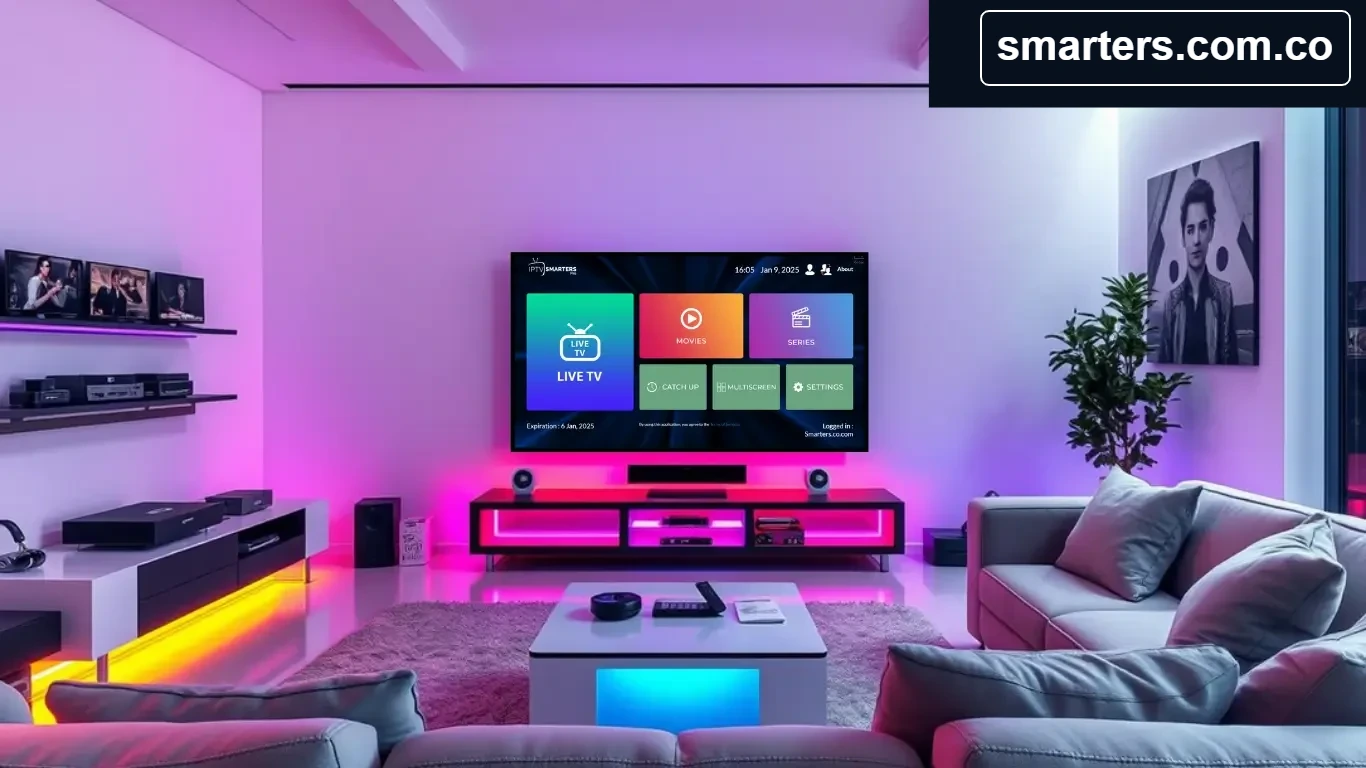
Smarters.com.co brings you a practical guide to using the Smarters media player on an NVIDIA Shield. We cover the official app-store route, general device checks, playlist setup, and troubleshooting. Menus and availability can change across Shield generations, Android TV versions, countries, and app releases, so confirm the instructions against your device and official sources.
What you need
- An NVIDIA Shield with supported system software and sufficient free storage.
- A reliable internet connection; wired Ethernet can help where Wi-Fi signal is unstable.
- The Smarters version offered for your device through its official app store or verified publisher source.
- Playlist or login details from a provider whose content you are legally authorized to access.
- A TV connected to the Shield and its remote or another supported input device.
Smarters is a media player, not a subscription or channel provider. It does not host streams or supply content. Your provider determines which channels, categories, guide data, and playback options are available.
Check and prepare the Shield
- Open Settings and check the device’s system/about section for its model and installed software version.
- Install pending system updates from the normal device settings, then restart the Shield if requested.
- Confirm the internet connection works and the device has enough free space for an app install and update.
- Keep account details private and check that your provider permits this device and your intended number of connections.
Install using an official store listing
- From the Shield home screen, open Google Play or the installed app-store interface supported on your model.
- Search for Smarters and verify the publisher and compatibility details in the listing.
- Select Install and let the device complete the download.
- Open the app from the home screen or app drawer and follow its current on-screen prompts.
If a compatible listing is unavailable, check with the official app publisher and NVIDIA support for supported options. Avoid APKs from unknown websites. Installing files from outside an app store can expose your device to malware or unsupported software. Only enable installation permissions when a verified developer explicitly documents the method and you understand the risk; turn the permission back off afterward.
Connect an authorized playlist
Use the login method your provider actually supports. With an M3U link, choose the playlist URL option and enter the complete private URL. With Xtream Codes, use the supplied server address, username, and password. Some versions accept a local playlist file instead. Enter details carefully, save the profile, and allow time for categories to load.
Never put credentials in a screenshot or public forum. If a link may have been exposed, contact the provider to replace or revoke it. When requesting general help from Smarters.com.co, share the device model, app version, and redacted error text—not a full login or playlist URL.
Adjust settings for your setup
Start with default playback settings. Confirm the Shield’s audio/video output matches your display and receiver, then adjust only options supported by the source and player. If available, choose a lower stream quality when the connection cannot sustain the higher bitrate. Avoid unnecessary background apps and leave enough free storage for normal system operation.
Troubleshoot common issues
The app is missing from the store
Check the app’s supported-device information, Shield model, country, and operating-system version. Restart the device and search again. If the publisher or manufacturer does not list the Shield as compatible, do not assume that an unrelated APK is safe or will work.
Sign-in fails
Check the spelling of the server address, username, and password. Ask the provider to confirm account status, connection rules, and any required port or URL format. Do not guess endpoints or use credentials from unofficial sources.
Playlist loads without categories
Wait for the first refresh to finish and check the playlist method. The provider may not include all categories or EPG. Ask the provider to verify the source before changing unrelated device settings.
Video buffers
Compare more than one authorized stream, test network stability on the Shield, and restart the router and device. Ethernet may reduce wireless interference. Reduce quality if the player offers it. If only one stream fails across devices, report that specific issue to the provider.
Remote navigation is difficult
Restart the player, confirm it is the television interface supported by the current version, and check whether the app offers a remote-friendly layout. Do not install remote-control tools from unknown sources.
Frequently asked questions
Does an NVIDIA Shield subscription come with Smarters?
No. The player and the media service are separate. Obtain a playlist only from a source you are authorized to access.
Can all Shield models run the same app version?
Not necessarily. Compatibility depends on hardware, system software, app release, and region. Check current official requirements.
Should I clear the app’s data?
Try restarting and refreshing first. Clearing app data can erase saved profiles; do it only if you have the authorized setup information needed to configure the account again.
See our FAQ, Xtream Codes walkthrough, and contact page for more help. Smarters.com.co is an independent guide and does not provide IPTV content.