
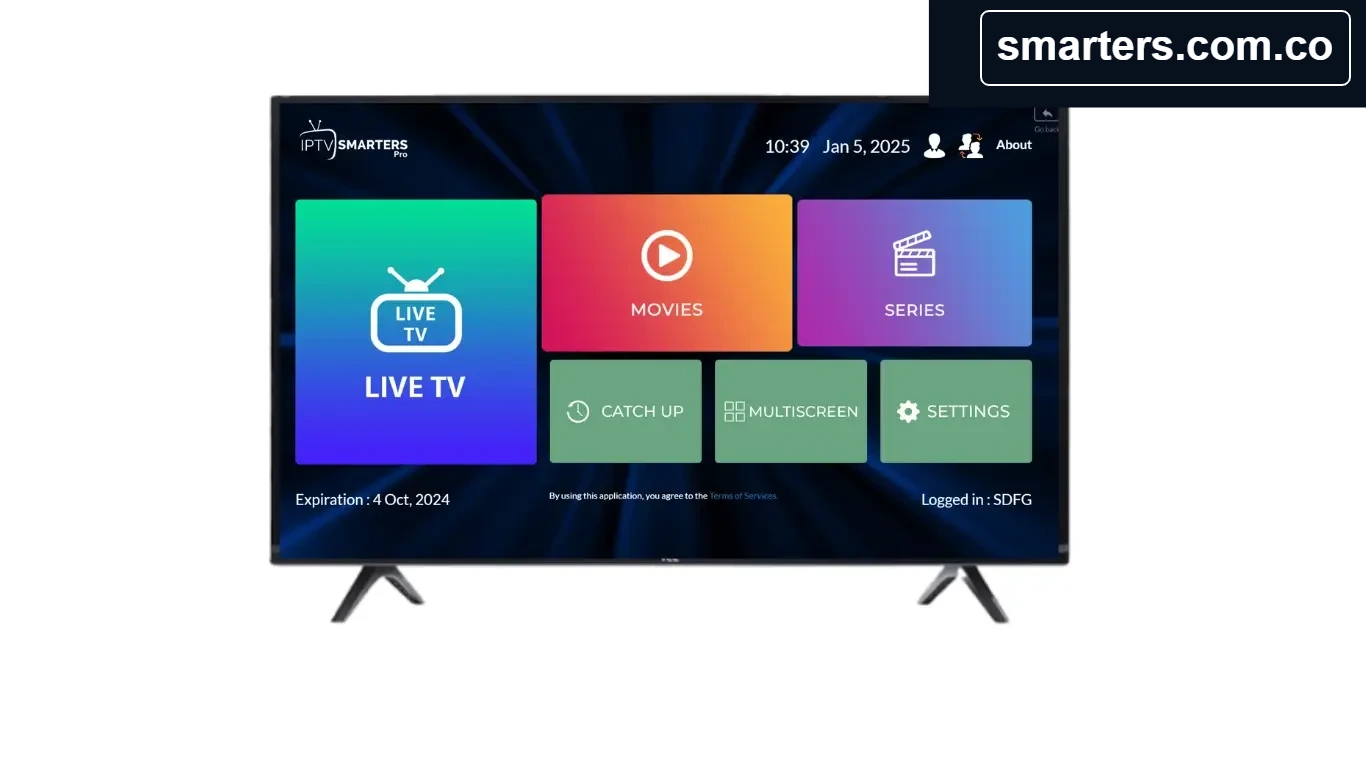
Seeing a spinning indicator or repeated pauses? This expanded checklist from Smarters.com.co helps narrow down buffering in the player without resorting to risky downloads or unnecessary settings changes. Playback depends on several parts working together: the device, local Wi-Fi or Ethernet, internet route, streaming source, and the provider’s server. Smarters is a media player and does not control or supply the stream.
First identify where the problem occurs
Note the time, device, app version, and whether one item or every item buffers. Try a second item from the same authorized playlist and, if possible, another supported device on the same network. If only one source is affected, the issue may be specific to that stream. If many devices and sources are affected, investigate the network or service provider.
Check your home connection
- Run a speed test on the same device or near it, rather than relying only on the router’s advertised maximum.
- Compare results with the content provider’s recommended bandwidth for the video quality you are attempting.
- Move a Wi-Fi device closer to the router or use a wired Ethernet connection if the device supports it.
- Restart your router using its normal power procedure, then reconnect the player device.
- Pause large downloads, backups, game updates, and other streams while testing.
- If your router offers separate bands, try the one with a stronger, steadier signal in your room.
A fast speed-test result does not guarantee every route to a streaming server is stable. Packet loss, interference, congestion, or provider-side load can still interrupt playback.
Reduce device workload
Close unused apps and restart the device to release temporary resources. Check that the operating system and Smarters version are supported and current; use the official device store or verified publisher source for updates. Make sure the device has reasonable free storage. On phones and tablets, disable battery-saving restrictions for a brief test if they are stopping the app from maintaining network activity. Do not disable operating-system security protections.
Try a lower playback quality
If the player or source offers quality choices, test a lower resolution. A lower bitrate can be more stable on a congested or limited connection. If the lower setting plays smoothly but higher quality does not, compare sustained bandwidth and Wi-Fi stability with the source’s recommendations. Resolution labels and quality options depend on the player version and the content source.
Use cache settings cautiously
Some versions expose a temporary cache or buffer setting, while others manage buffering automatically. If there is an in-app option, start with the default and make only small reversible changes. Clearing temporary app cache can help after an update, but clearing app storage or reinstalling may remove saved profiles. Make sure you have your provider’s authorized setup details before removing stored data.
Provider-side checks
If a single channel, movie, or series repeatedly buffers, ask the provider to check that item and the account status. If everything from a service fails on multiple devices, check for provider maintenance or a server outage. Do not try unverified playlists or alternate streams as a workaround. Smarters.com.co cannot check or repair a third-party streaming server.
Common symptoms and what to try
Buffering starts at busy times
Compare performance at another time, reduce quality if available, and test a wired connection. The cause could be local network congestion or the source provider’s capacity.
Only Wi-Fi devices have trouble
Test near the router, remove obstacles, use a less congested Wi-Fi band, or try Ethernet. If several devices have weak signal in the same room, router placement or coverage may be the issue.
The app freezes while browsing
Restart the player, close other apps, check device storage, and install a supported update. A navigation freeze may be a device-resource problem even when the network works.
Audio and video stop together
Test another authorized source, then check network stability and provider status. If the failure follows one item across devices, send the provider the time and a description without exposing account credentials.
Information to include when asking for help
- Device brand and model, operating-system version, and Smarters app version.
- Whether the issue affects one item or all items, and whether another device reproduces it.
- Connection type (Wi-Fi or Ethernet), approximate speed-test result, and time of occurrence.
- The exact error message, with screenshots cropped or redacted to hide usernames, passwords, and playlist URLs.
Quick checklist
- Confirm the device is online and near a stable connection.
- Restart the device and router; pause heavy background downloads.
- Try another authorized item and a lower quality if available.
- Update the app only from a trusted, official source.
- Contact the provider if the same source fails across devices.
For setup questions, see our FAQ, M3U guide, and Xtream Codes guide. Protect your account credentials and use only media sources you are authorized to access.